1. Introduction
This documentation provides a comprehensive guide on integrating Zoom within the InMeetFusion application. The integration process is initiated directly from the InMeetFusion platform, allowing users to authorize and utilize Zoom features seamlessly.
2. Prerequisites
Before proceeding with the integration, ensure you have the following:
- InMeetFusion Application Installed: Download the latest version of the InMeetFusion application from the following link: Download InMeetFusion APK.
- Google Chrome Browser Installed: Ensure you have the latest version of Google Chrome installed for optimal performance and compatibility.
- Active Zoom Account: Ensure that you have a valid Zoom account with appropriate permissions to authorize app integrations.
- Internet Connection: A stable internet connection is required to complete the integration process.
- Test Account:
- Login URL: https://testbiz.inmeet.ai
- Username: siva.k@instavc.com
- Password: Fusion@123
3. Integration Setup
Login to Business Admin
- Visit: https://testbiz.inmeet.ai
- Enter credentials to log into the Business Admin dashboard
- Installation:
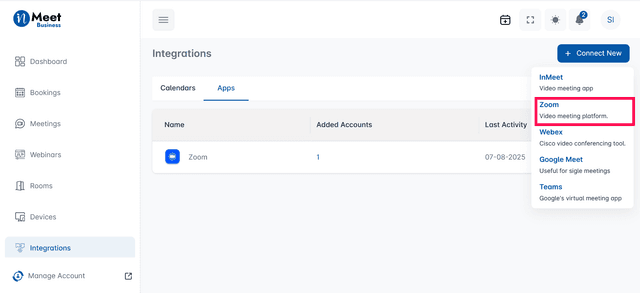
- Go to Integrations from the sidebar
- Open the Apps tab
- Click Connect New and select Zoom from the list
- Zoom Authorization:
- Click Zoom to launch the OAuth authorization flow
- Enter Zoom credentials
Email: instavcinmvc@gmail.comPassword: InMvc@123c
- Sign in to your Zoom account
- Approve consent permissions.
- Click
Allow
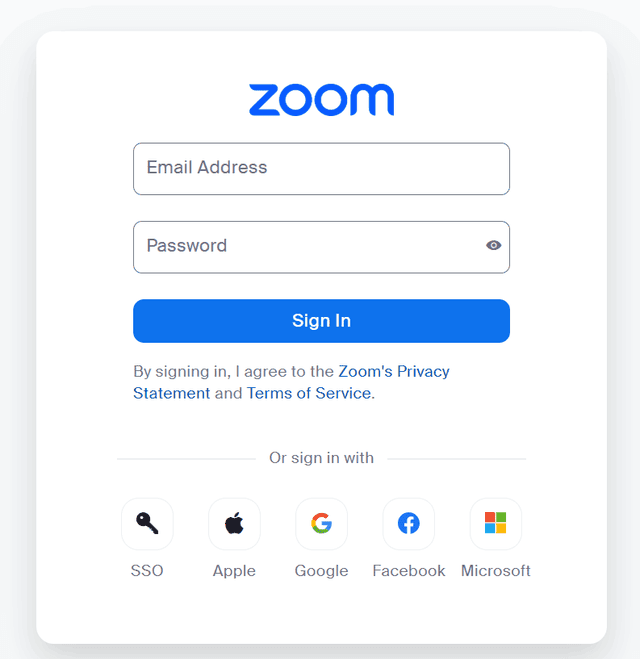

Your Zoom account will now be securely linked to InMeet Fusion.
4. Confirmation & VC App Activation
Check Integration Status
Follow these steps to verify and manage Zoom integration for a specific room:
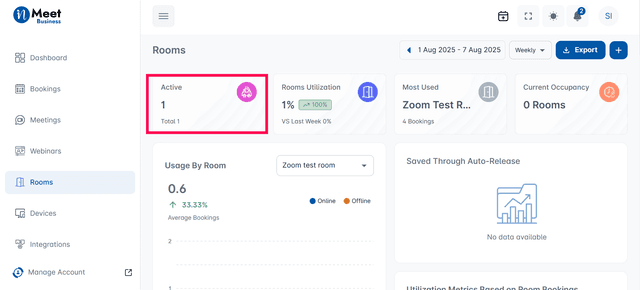
- Go to Rooms from the Business Admin side menu.
- Click on Active Room to view available rooms
- Select the room where you want to integrate the Zoom account
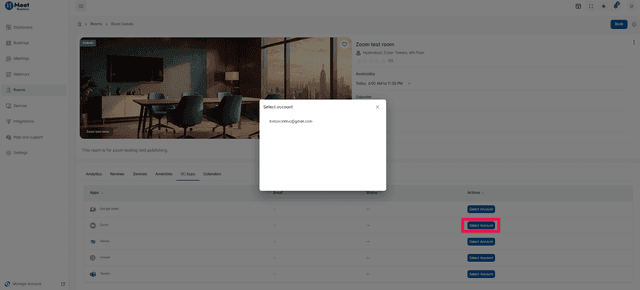
- Select the VC Apps tab under the selected room
- Click Select Account next to Zoom
- Select the Zoom account from the pop-up list
- Once added, you can toggle Zoom between Active and Inactive for the selected room
5. Hub Room Pairing Process
This section explains how to pair a Hub device with a meeting room in InMeet Fusion platform. The process involves accessing the pairing code from the Hub and entering it in the Business Admin portal.
- Step 1: Access the Pairing Code from Hub
- Power on the InMeet Fusion Hub device.
- On first boot, you'll see:
- Language selection screen → choose your preferred language.
- Terms and Conditions screen → review and tap ?Continue.
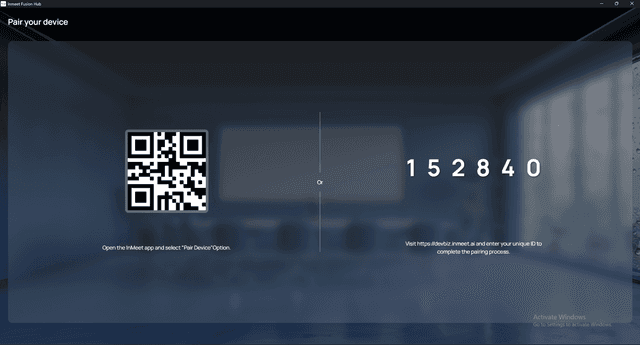
- After completing these steps, the Pair Your Device screen will appear.
- This screen will show a 6-digit unique code
- Step 2: Enter the Code in Business Admin
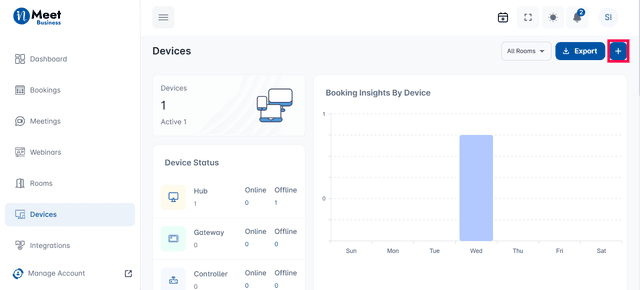
- In the Business Admin interface, Navigate to Device
Section - Click the "+" icon
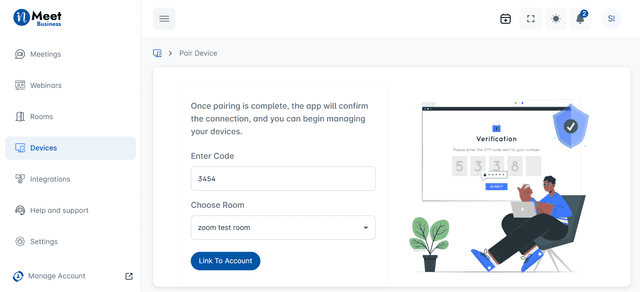
- Enter the Room Code
- Select the appropriate Room from the dropdown
- Click Link to Account
Once paired, Zoom meetings can be scheduled and launched from this room through Hub.
6. Usage
Launching Instant Meeting form Hub
This section explains how to instantly start a Zoom meeting from the InMeet Fusion Hub interface using the Instant option.
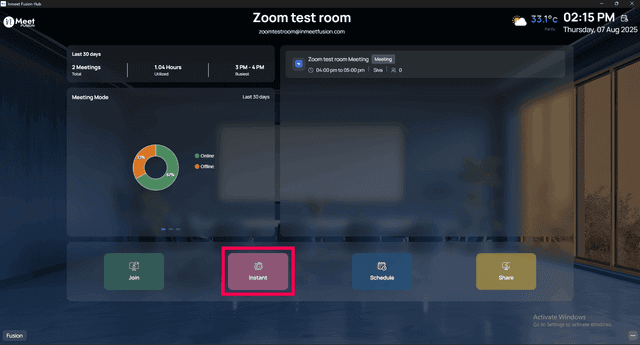
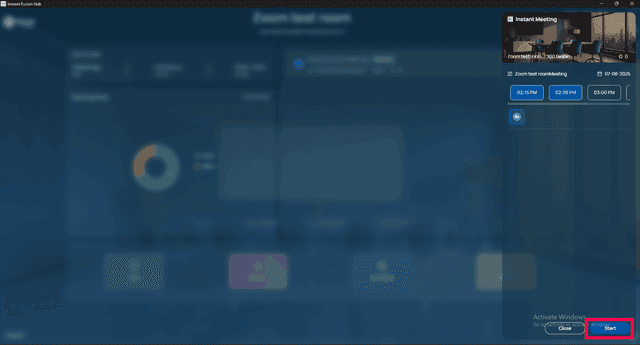
- From the InMeet Fusion Hub, go to the main control dashboard.
- Click the Instant button to start a meeting immediately
- Select the preferred time slot and click Start
7. Zoom Meeting Interface
This section shows the screen after a Zoom meeting has been successfully launched via the Hub.
- Once launched, the Zoom meeting opens in full-screen conference mode

8. Disconnecting Zoom
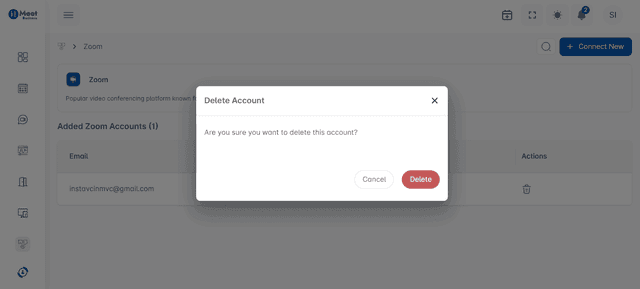
To remove Zoom integration from a user account:
- Navigate to the Integrations section, click on the Apps tab, and then select Zoom from the list.
- Click "Delete"
9. Troubleshooting & Support
Common Issues
- Unable to connect to Zoom: Ensure that you are logged into Zoom with the correct account.
- Integration errors: Verify that the permissions are correctly granted during the authorization step
Support Contact
For detailed support information, please visit our Support Information Page or contact us at support@inmeetfusion.com.
Conclusion
The InMeetFusion platform provides seamless integration with Zoom, offering users the ability to manage meetings and access Zoom functionalities directly. This guide outlines the steps necessary to set up and use Zoom within InMeetFusion, ensuring a streamlined video collaboration experience.